There was a time when just getting a printed page from computer output was seen as a fantastic feat and how long it took to do so really was okay as long as it happened. The glory dark ages of printing and computer generated output are long over and today people expect almost instant output when they hit the print button.
Read MoreOffice Document Strategies Blog
Topics: total cost of operation, Multifunction Printer, MFP, Printer, Colour printer, colour multifunction, cost of printing, Kyocera copier
As anyone who is looking for a multifunction printer (MFP) knows there are hundreds of options you could choose from. Of course not all of them will be in your particular budget so that is one tool for narrowing your choices but there are also other considerations which you must think about.
Read MoreTopics: Multifunction Printer, MFP, colour multifunction, Multifunction Printer support
Microsoft Security Patch Breaks SMB Scanning On MFPs
Posted by Lee Kirkby on Wed, Feb 6, 2019 @ 06:02 AM
Reports are coming in that many older functioning MFPs from virtually every brand are having difficulty with SMB scanning due to an upgrade that Microsoft has released which affects the older versions of SMB (V0 & V1). The upgrade corrects a security problem which is a good thing but for networked MFPs from Kyocera, Ricoh, Konica Minolta, Canon, Toshiba, Sharp, Samsung and other brands, it can interfere with the functioning of their scanning operations.
Read MoreTopics: Multifunction Printer, Scanning, MFP, photocopier, Multifunction Printer support, Windows 10, Microsoft, it security
Enhanced Print Device Management Improves Printer And MFP Performance
Posted by Lee Kirkby on Wed, Oct 10, 2018 @ 08:10 AM
The consumer market is flooded with tools to enhance personal tech performance through hardware and software tools. In these days of Alexa and Google Home there are many ways that consumers interact with physical devices using apps and voice commands. Check the weather, turn on and off lights, schedule events in your calendar and get reminders on critical activities all through your mobile device or a small speaker system in your home.
Read MoreTopics: MFP, toner, colour multifunction printer, photocopier, Customer service, Multifunction Printer support, Kyocera copier, Kyocera Canada
Topics: MFP, Colour printer, Managed Print Services
When first invented and popularized fax machines were seen as a wondrous invention. After all being able to send a piece of paper or even a whole document to someone in another office or even across the world over a phone line was pretty different than the norm at the time.
Read MoreTopics: mailing machines, MFP, Fax
Key Decisions To Make When Purchasing New Printer
Posted by Lee Kirkby on Wed, Feb 1, 2017 @ 08:02 AM
One of the infrequent tasks that every organization faces at some point is buying or leasing a new print device. Often someone just says, 'order one like the one we have now". Of course since print devices tend to last for some time the one you have now may no longer be in the market and it may not really be the right fit for your current needs. Here are a few of the key decisions you need to consider BEFORE you place that order.
Read MoreTopics: Multifunction Printer, MFP, Printer, colour multifunction, Multifunction Printer support
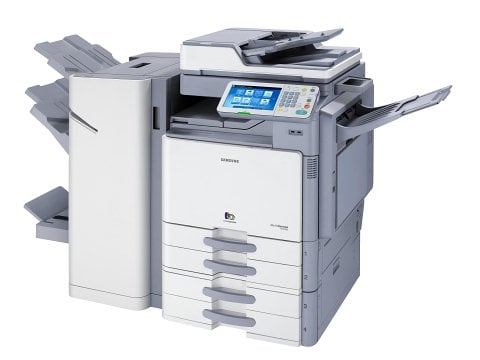
Just about a month ago HP and Samsung announced a deal that will see HP acquiring Samsung's printer business which is said to be about $1.8 billion US annually. It appears that after many years producing print products as an OEM supplier and then a few years doing so under its own name Samsung has decided that it should focus on other aspects of its electronic industry.
In the announcement HP has said this is the largest print related purchase that it has ever made.
HP has long used Canon engines for many of its laser printers and with this deal it gains the potential to move much of its engine production and R&D to the Samsung based designs.
I observe that it is only a few years that Samsung has been producing and selling its own brand of A3 (traditional 11 x 17 copier sized) products and it may be access to this area is one of the keys for HP. Over the past ten years or so HP has struggled trying to find a fit with multifunction printer devices under its brand which can take control of the office print market like they have successfully done with their laser printer models which are primarily A4 (letter/legal) sized.
By acquiring Samsung they instantly obtain a recognized set of full bore A3 office multifunction devices in both colour and mono which can be branded HP and could complement other units in their offerings. For those dealers which have been selling Samsung equipment it presents a bit of a challenge, but not one they will not have handled before. Potentially they may have a broader set of options presented as HP fills out the line. For most they will be dual branded and will have another line to use to fulfill customer needs.
Industry Changes Ongoing
This acquisition is just another step in a steady shift in the print market as the volume of paper changes and the moves to a more electronic or digital document world continue.
Konica Minolta was created through the merger of two separate brands in 2003. Ricoh has built up its operations through a string of brand purchases over the years, Ricoh acquired Savin, Gestetner, Lanier, Rex-Rotary, Monroe, Nashuatec, IKON and most recently IBM Printing Systems Division / Infoprint Solutions Company.
Read MoreKycoera PinPoint Scan Enhances MFP Scanning - Leppert blog
Posted by Lee Kirkby on Wed, Sep 14, 2016 @ 08:09 AM
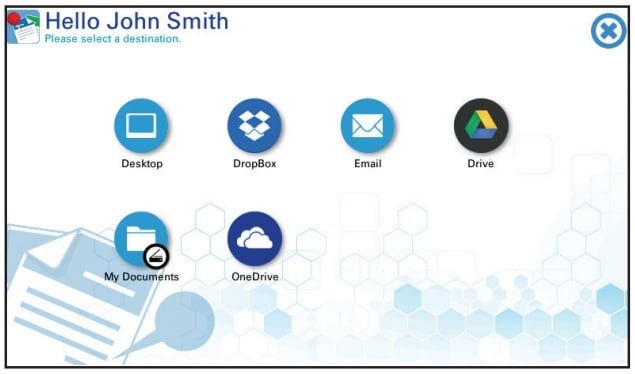
If you need to improve productivity and find a simple way to Scan to your PC, Mac locally or in Cloud Apps like Microsoft 365 (Office 365) OneDrive, Google Drive, Dropbox or others, then this could be the App you have been looking for.
Most modern MFPs (multi-function printers) include the capability of basic network scanning in their setup. Using simple scan to email, or scan to folder systems, they make it possible for users to send and convert paper documents to images like PDF format. This capability provides many benefits to your users in the 'war on paper' but still leads to manual steps for filing or renaming, making the systems not as efficient for frequent work.
Read MoreTopics: Scanning, document management, MFP, Kyocera copier, Paperless office, office technology
Using Your Copier, MFP, Scan Function For Important
Posted by Lee Kirkby on Wed, Mar 30, 2016 @ 08:03 AM
We are always looking for useful information we can share with readers to help them better operate their equipment and take advantage of the capabilities that office technologies provide. Sometimes we come across information from other industries sources which we trust that provide good solid ideas. This blog is one of those and I am pleased to repost a piece that was written by a colleague from New Jersey who is one of the best and most experienced advisers I have dealt with.
Five Tips For Better Scanning With Your Copier
"Right before I left for a trip to Texas, I received an order from a net new customer for the replacement of their old digital copier for a new digital copier.
When I opened the pdf that contained three pages I saw that the quality of the scan was poor, so poor in fact that it looked like the document had been faxed.
For those of us in the industry, we know that scanned documents especially lease documents need to be readable. Poor quality scans will not be accepted by the leasing companies.
Thus I thought I would post these tips of how to scan higher quality documents from the scanner with your copier.
Tips
- Increase the resolution from the default of 200 dpi to at least 300 dpi. The higher resolution will result in a larger file size, but the document will be sharp, crisp and readable.
- Check to make the colour scanning enabled. This will enable the scanner to scan both black and colour documents in a single scan.
- If your document is two sided, enable the two sided scanning option. Thus, you'll only have to scan the two sided document once.
- Your copier may have an additional feature called 'blank page detection'. Enabled blank page detection will automatically delete any and all blank pages. This is especially useful for two sided documents that may have a blank back side page at the beginning and end of the document.
- Enable the OCR detection. This means that every word on a page is indexed. Thus, when you open the scanned pdf document you'll be able to search that pdf document for a certain word, phrase, number etc.
More and more businesses are relying on scanning documents instead of copying them and saving paper based files. That's a good thing, however many are not checking these documents for the quality of the document once they have been scanned.
Some copiers will allow you to preview the scanned pages before you scan the document to any location on your network. This one feature can save countless hours of scanning because the original documents were not scanned at high enough resolution (dpi).
Do your homework and ask questions from the rep. The reason for asking the rep is because many of these additional scanning features may not be on the manufacturer's brochure, in addition, they may not work the way you think they would work. Do the research and find a quality rep who knows their system inside and out."
The above article was written by Art Post, and experienced office technology specialist in New Jersey who frequently writes and comments on the industry, its practices and products. Art's material can be found at The Print4Pay Hotel Blog.
We hope you found these tips useful and happy scanning.
Lee K
Read More